User manual
Running Simulation
Select a scenario, model engine, and output interval, then run a SWAT simulation from the viewer.
To run simulation for one scenario, select the scenario in Project Explorer first and then click one of the three run buttons located on top of the scenario view. The all run the model but generate outputs in different time interval.

Figure 6-1. Function Buttons in Scenario View
A different model engine could be selected from model engine list if available. To add a model engine, copy the executable file to swat_exes folder located in installation folder. The default model engine is SWAT v627. Note that this is not the original model engine that would generate output files. It has been modified to generate results in database.
When the model starts to run, information would be shown in the text box in the main view to tell the progress.
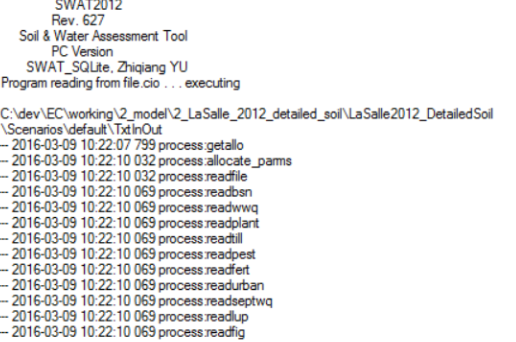
Figure 6-2. Model Simulation Progress Message in Scenario View
Once the model simulation finish successfully, the Project Explorer will be refreshed to add output nodes in the scenario node. It’s ready to view the outputs.